Transcribe audio and video right from your AI assistant
Connect QuickTranscript to Claude, ChatGPT, Claude Code, or any MCP client. Paste a media link in the chat and your assistant gets back the transcript and summary.
https://quicktranscript.app/mcp/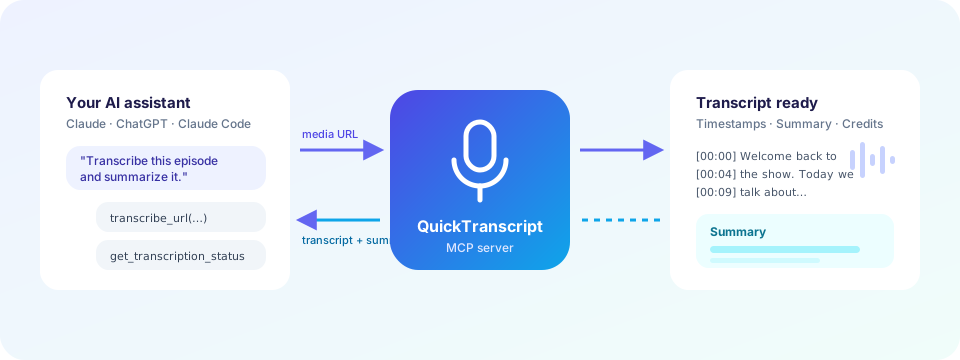
Three tools, one simple workflow
Transcribe any public link
Podcasts, interviews, lectures, and meetings: any publicly reachable audio or video file URL.
Timestamps and summary
Get a timestamped transcript plus a summary your assistant can quote, analyse, or turn into notes.
Credits stay in view
Your assistant can check your balance before it starts. Jobs use the same credits as the web app.
Pick your client
Every client uses the same server URL. Create a dedicated API key for each connection so you can disconnect one without affecting the others.
Claude (claude.ai)
- Open Customize > Connectors, click +, then Add custom connector.
- Enter
https://quicktranscript.app/mcp/and click Add. Leave the OAuth client ID and secret empty. - Click Connect and approve on the QuickTranscript page with your API key.
ChatGPT
- Turn on Developer mode under Settings > Security and login.
- On the ChatGPT Plugins page, click the plus button and create an app with the URL
https://quicktranscript.app/mcp/and OAuth authentication. - Approve on the QuickTranscript page with your API key.
Claude Code & developer tools
- Add the server with your key in the
X-API-Keyheader:
claude mcp add --transport http quicktranscript https://quicktranscript.app/mcp/ --header "X-API-Key: $QUICKTRANSCRIPT_API_KEY"Cursor, VS Code, the OpenAI Responses API, and the MCP SDKs work the same way. See the LLM guide for details.
Menu names change and custom connector availability depends on your plan and workspace policies. QuickTranscript is not a vendor-verified or directory-listed connector.
Approve once, revoke any time
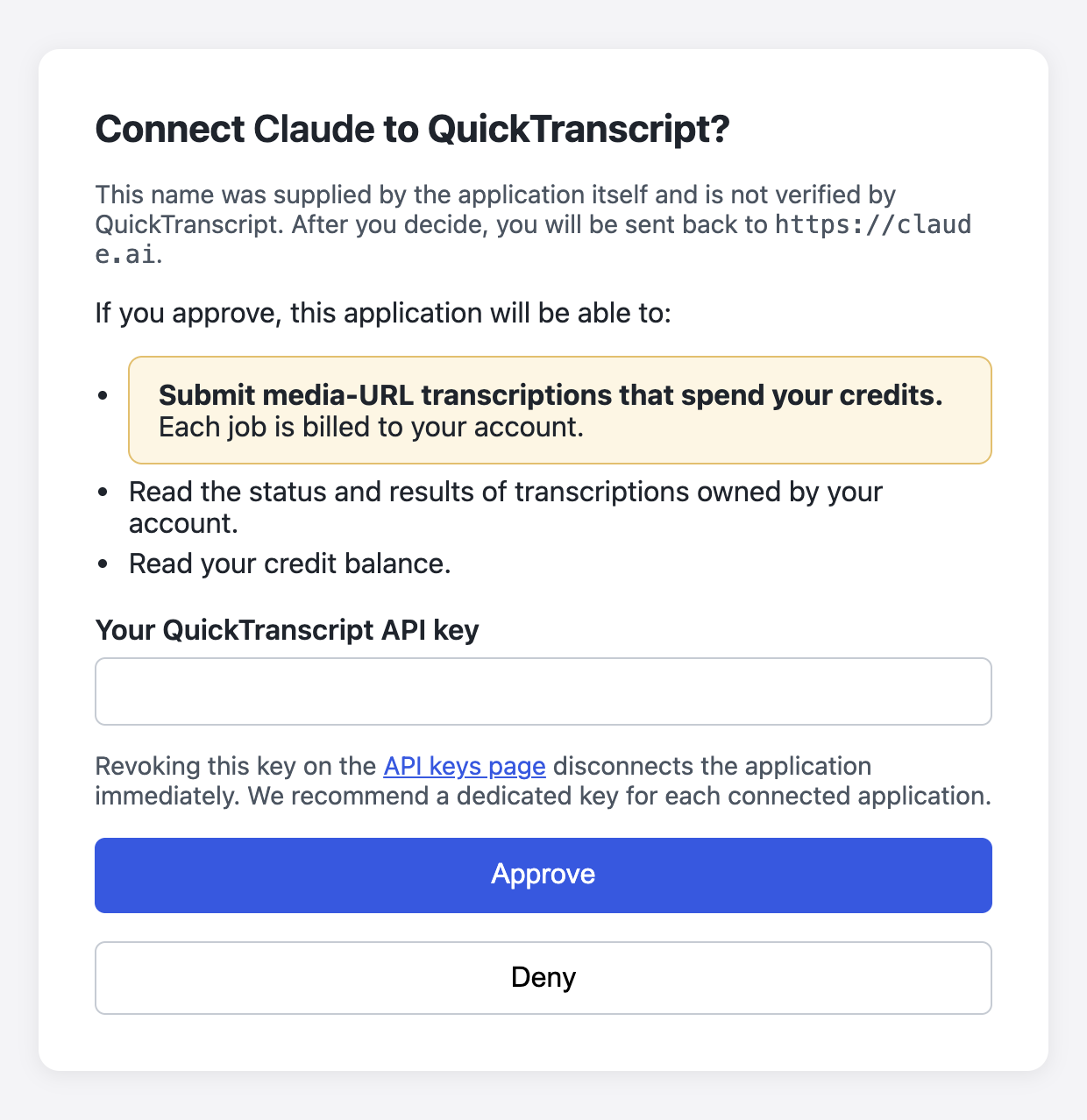
When Claude or ChatGPT connects, QuickTranscript opens an approval page that shows exactly what the connector is asking for.
- The connector never sees your API key. It gets a short-lived token instead.
- It can submit transcriptions that spend your credits, read your task results, and read your balance. Nothing else.
- Revoke the key on the API keys page and the connection stops working immediately.
- Connections expire after 30 days, and then you approve again.
Just ask in plain language
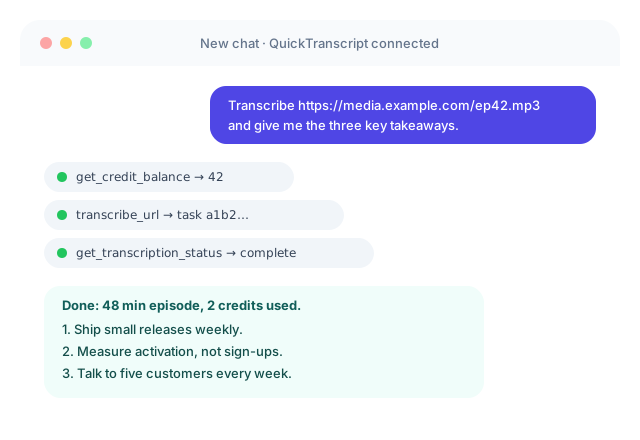
Your assistant picks the right tools on its own: it checks your credits, submits the link, waits for the job, and answers from the transcript.
- "Transcribe this interview and pull out every question the host asked."
- "Summarize this lecture recording into study notes."
- "How many credits do I have left?"
Available tools
| Tool | What it does |
|---|---|
transcribe_url | Starts a transcription of a public audio or video URL, optionally with a summary. Spends credits. |
get_transcription_status | Returns job progress and, when finished, the transcript and summary. |
get_credit_balance | Returns the account's remaining credits. |
Good to know
Can I transcribe files from my computer?
Not through MCP. The media must be a public URL pointing to the file itself (YouTube pages are not supported). To transcribe a local file, upload it in the web app or through the REST API.
How much does it cost?
MCP jobs use the same credits as the web app. Check your balance with the get_credit_balance tool or on the home page.
How do I disconnect?
Revoke or delete the API key you approved with on the API keys page. You can also remove the connector in your assistant's settings.
Is there a technical reference?
Yes. The LLM integration guide covers authentication, OAuth endpoints, tool schemas, and errors.
Ready to connect?
Create an API key, then add https://quicktranscript.app/mcp/ to your assistant.